


How-to · Google Workspace
Turn customer calls into a sales knowledge base with Google Workspace Studio
A four-step, no-code Workspace Studio flow that filters customer calls, extracts pain points and next steps, and files a structured summary in Drive.

Most sales teams record their customer calls. Few get much use out of them. The transcript lands in one person's Drive, runs to thousands of words, and gets read once, if at all. The pain point a prospect named in week two never reaches whoever writes the proposal in week six.
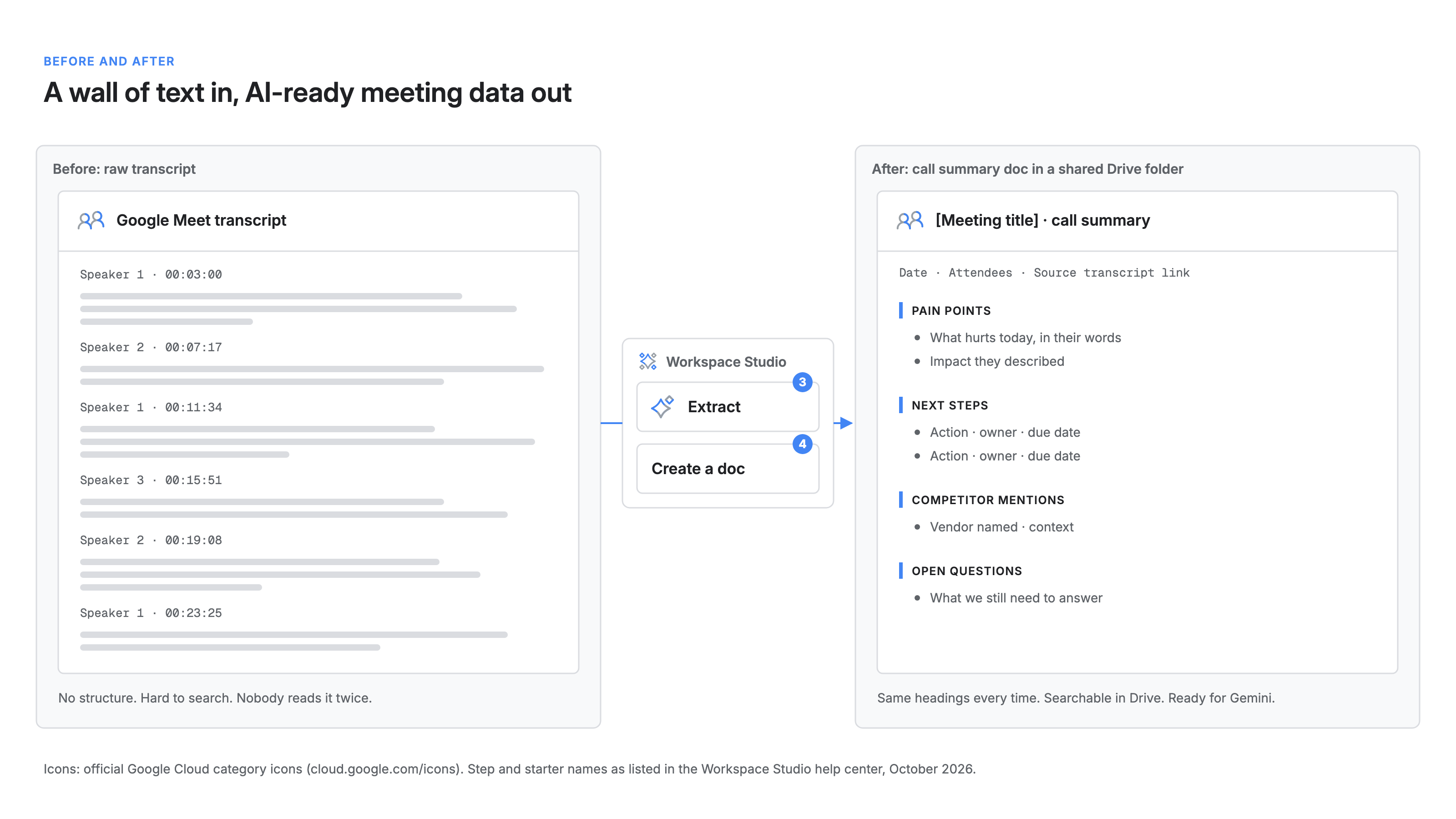
I use one automation to fix this for my own customer meetings. It runs in Google Workspace Studio, Google's no-code tool for building Gemini-powered flows across Workspace apps. Every customer call becomes a formatted summary doc in a shared Drive folder, with the same headings every time. Instead of a wall of text, my team gets structured call notes it can search and act on.
In this post you'll learn:
- How the flow is built: trigger, filter, synthesize, output
- How to configure each step in Workspace Studio
- What to check before you roll it out to a team
How it works
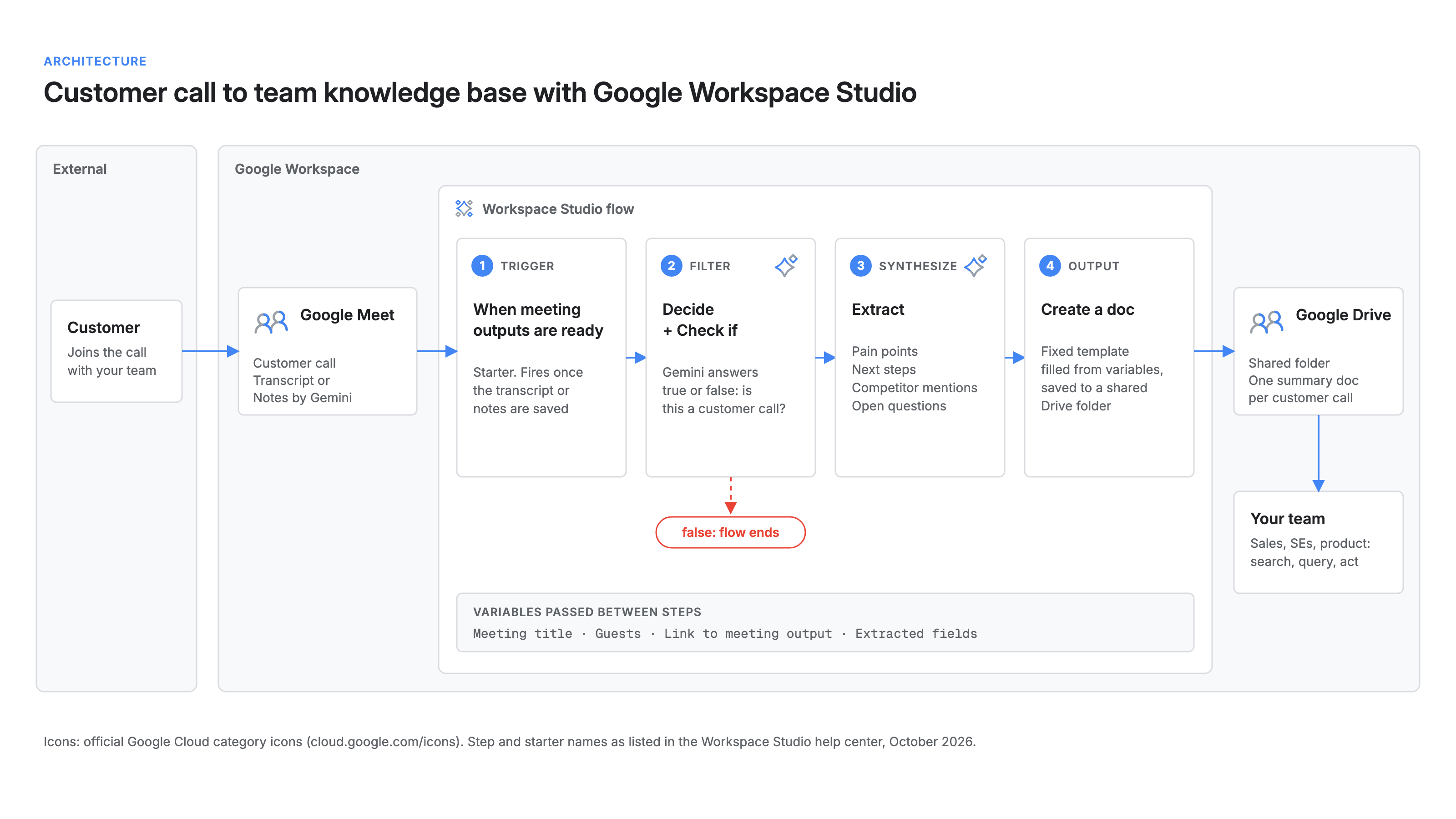
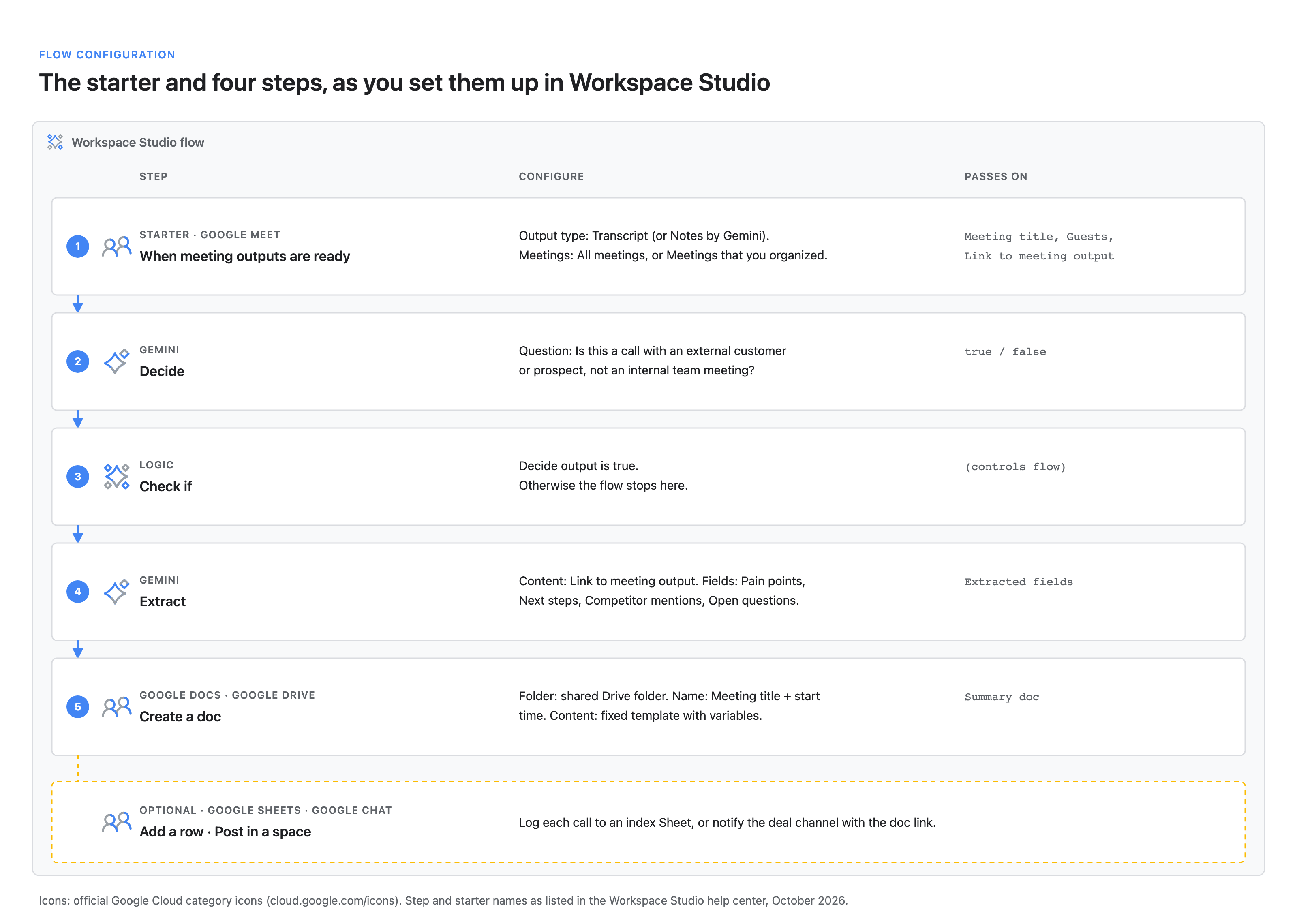
The flow has four stages, each built from standard Workspace Studio starters and steps:
- Trigger. The When meeting outputs are ready starter fires when a Google Meet transcript or Notes by Gemini are ready.
- Filter. A Decide step asks Gemini a yes-or-no question: is this a customer call? A Check if step stops the flow when the answer is false.
- Synthesize. An Extract step has Gemini pull out pain points, next steps, competitor mentions and open questions.
- Output. A Create a doc step writes a formatted summary into a shared Drive folder.
Steps run in sequence and pass data as variables: the starter exposes the meeting title, guest lists, start time and a link to the meeting output, and later steps reference them directly.
The filter matters more than it looks. Without it, every standup and one-on-one becomes a "customer summary" and the folder turns to noise within a week.
Before you begin
You'll need:
- A Google Workspace work or school account with Workspace Studio turned on. Google lists it for most Business, Enterprise and Education editions, and admins can turn it on or off by organizational unit or group.
- Gemini turned on for Workspace Studio in the Admin console. If it's off, AI steps such as Decide and Extract aren't available, and active flows that use them stop working.
- Meet transcripts or Notes by Gemini turned on for your calls.
- A shared Drive folder for the summaries, created up front.
One constraint: the meeting-outputs starter only runs if you attended the meeting during its scheduled time. So for a team knowledge base, each seller runs their own copy of the flow, pointed at the same folder. You can share a flow with teammates much like a Google Doc and they make their own copy, so build it once and hand it out.
Step 1: Start the flow when meeting outputs are ready
Open Workspace Studio at studio.workspace.google.com and create a new flow.
Choose the When meeting outputs are ready starter. Set:
- Output type: Transcript. It gives Gemini more raw material than Notes by Gemini.
- Meetings: All meetings, or Meetings that you organized. Start broad; the next step does the filtering.
Step 2: Filter out anything that isn't a customer call
Add a Decide step, which uses Gemini to return true or false. Point it at the meeting output and guest list, and ask a precise question:
Is this a conversation with an external customer or prospect
(someone outside our company), rather than an internal team
meeting, interview, or one-on-one? Use the attendee list and
the content of the conversation.
Then add a Check if step that continues only when the Decide result is true. Anything else ends the run.
Keep the question narrow. A vague prompt ("is this a sales meeting?") gives inconsistent answers on partner and vendor calls. If you want partner calls captured, say so in the question.
Step 3: Extract the fields your team actually uses
Add an Extract step with the meeting output as its content. Extract takes custom fields, each with a name and a description; the description is your instruction to Gemini. I use four:
Pain points
  Problems the customer described in their own words, with
  the business impact they mentioned. Quote short phrases
  where possible. Do not infer pains they did not state.

Next steps
  Each agreed action, with owner and due date if stated.
  Write "owner not stated" rather than guessing.

Competitor mentions
  Any vendor, product, or in-house tool the customer named
  as an alternative or incumbent, with one line of context.

Open questions
  Questions the customer asked that we did not fully answer.
Two rules make the output more trustworthy. Tell Gemini what not to do: no inferred pains, no guessed owners. And keep fields stable. A knowledge base is only as useful as it is consistent; twenty calls from now, "Competitor mentions" should mean the same thing.
Step 4: Write a formatted summary doc to Drive
Add a Create a doc step and choose your shared Drive folder.
- Name: meeting title plus start time, from variables, so docs sort and search cleanly.
- Content: a fixed template with each extracted field under its own heading.
[Meeting title] · call summary
Date: [Meeting start time]
Attendees: [Accepted: Guests]
Source: [Link to meeting output]

PAIN POINTS
[Pain points]

NEXT STEPS
[Next steps]

COMPETITOR MENTIONS
[Competitor mentions]

OPEN QUESTIONS
[Open questions]
Insert the bracketed values with + Variables. Always include the source link: anyone who doubts a summary should be one click from the transcript.
Turn the flow on and run a real customer call through it before sharing.
Optional: make it easier to find and act on
Two additions help once the folder grows:
- Add a row to a Google Sheet with title, date, doc link and competitor mentions: a sortable index across every call.
- Post in a space to drop the doc link into the account's Google Chat space.
Consistent structure also makes the folder better source material for Gemini, so questions like "which customers raised this pain point this quarter?" become easier to answer from your own calls.
What this means for your team
The flow is small, but it moves customer knowledge out of individual heads and inboxes into one place everyone can search.
- Sales leaders get a consistent record of what customers say, not a rep's recollection of it.
- Sales engineers and product see pain points and competitor mentions without sitting in on every call.
- New hires can read the last ten calls on an account before their first meeting.
A few things are still on you:
- Accuracy. Gemini can miss or misread details. Keep the source link in every doc and spot-check early.
- Access. The folder holds customer conversations. Restrict it, and follow your organization's retention and consent rules for recordings.
- Ownership. Someone should own the field definitions. When they change, update the Extract step and reshare the flow so every seller's copy matches.
Get started
Pick one seller and one week of customer calls. Build the flow and read every summary against its transcript. Tighten the Decide question and Extract descriptions until you'd forward the output unedited. Then share the flow and point everyone at the same folder.
Want help designing flows like this for sales, support or delivery, or connecting them to your Google Cloud data? Talk to us.
Further reading
- Guide to Starters & Steps in Workspace Studio (Google Workspace Studio Help)
- Now available: Create AI agents to automate work with Google Workspace Studio (Google Workspace Updates)
- Introducing Google Workspace Studio (Google Workspace Blog)
- Extend Google Workspace Studio (Google for Developers)
- "Take notes for me" in Google Meet (Google Workspace Updates)